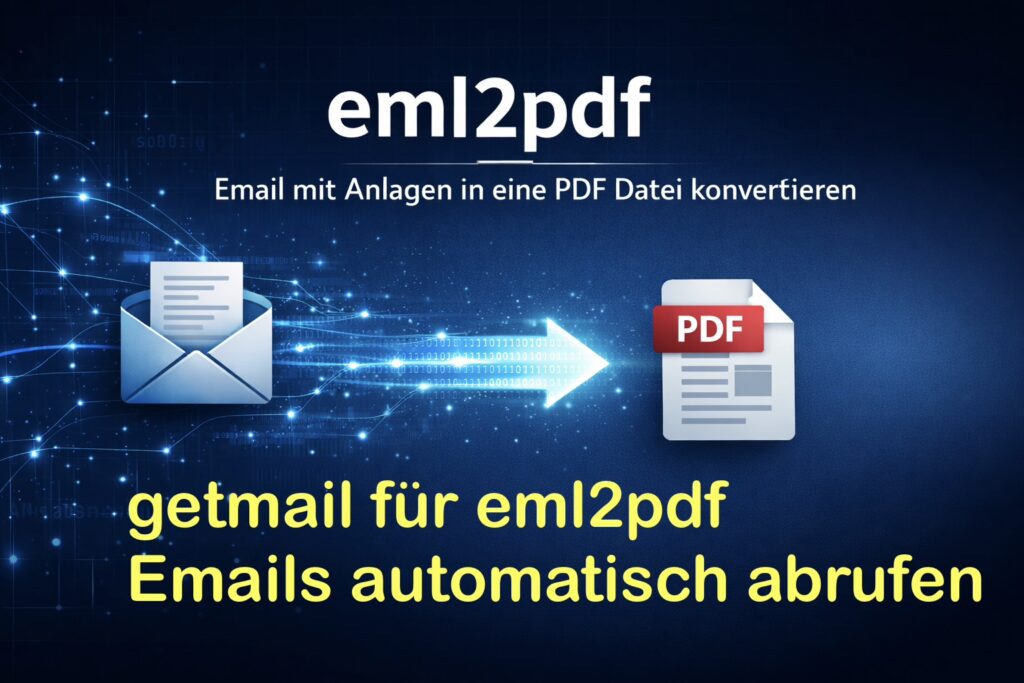
getmail for eml2pdf: how to retrieve your emails from the SERVER and automatically transfer them to eml2pdf. You can also define filters!
The following article was written at the suggestion of “Samke,” a user of eml2pdf. Samke has had very good experiences with getmail for automatically retrieving emails and transferring them to eml2pdf for processing.
Simple Configuration for 1-3 Email Accounts
The Goal
Automatically fetch emails from multiple accounts and store all EML files directly in one directory (./eml-import/) – ready for further processing with tools like eml2pdf.
The Solution: Maildir + Automatic Moving
We use the proven Maildir format (each email as its own .eml file) and simply move the files from the new/ subdirectory up one level.
Video: getmail for eml2pdf, automatically retrieve emails
Language: 🇩🇪|🇬🇧
☝️ Use YouTube subtitles for all languages.
1. Prepare Directory Structure
bash
mkdir -p getmail-docker/{config,eml-import,logs}
cd getmail-docker
2. Configuration Files for Up to 3 Accounts
Account 1: Gmail – config/getmailrc-gmail
ini
[retriever]
type = SimpleIMAPSSLRetriever
server = imap.gmail.com
port = 993
username = [email protected]
password = TestPasswort.1  # With 2FA: Use App Password!

[destination]
type = Maildir
path = /eml-import/

[options]
verbose = 2
delete = false
delete_after = 0
max_message_size = 0
message_log = /logs/getmail-gmail.log
Account 2: Outlook – config/getmailrc-outlook
ini
[retriever]
type = SimpleIMAPSSLRetriever
server = outlook.office365.com
port = 993
username = [email protected]
password = AnotherPassword

[destination]
type = Maildir
path = /eml-import/

[options]
verbose = 2
delete = false
delete_after = 0
max_message_size = 0
message_log = /logs/getmail-outlook.log
Account 3: Web.de – config/getmailrc-webde
ini
[retriever]
type = SimpleIMAPSSLRetriever
server = imap.web.de
port = 993
username = [email protected]
password = WebdePassword

[destination]
type = Maildir
path = /eml-import/

[options]
verbose = 2
delete = false
delete_after = 0
max_message_size = 0
message_log = /logs/getmail-webde.log
3. Explanation of the Most Important getmail Options
Retriever Section (Server Connection)
| Option | Description | Example |
|---|---|---|
| type | Protocol and encryption | SimpleIMAPSSLRetriever (IMAP with SSL), SimplePOP3SSLRetriever (POP3 with SSL) |
| server | Mail server address | imap.gmail.com, outlook.office365.com, imap.web.de |
| port | Server port | 993 (IMAP SSL), 995 (POP3 SSL) |
| username | Full email address | [email protected] |
| password | Password or app password | TestPasswort.1 or 16-character app password for Google |
Destination Section (Storage Location)
| Option | Description | Example |
|---|---|---|
| type | Storage format | Maildir (individual EML files in new/, cur/, tmp/) |
| path | Target directory in container | /eml-import/ |
Options Section (Behavior)
| Option | Description | Example |
|---|---|---|
| verbose | Output verbosity level (0-3) | 2 (medium detail) |
| delete | Delete emails from server after download? | false = keep, true = delete |
| delete_after | Auto-delete after X days | 0 = disabled, 30 = after 30 days |
| max_message_size | Maximum message size in bytes | 0 = unlimited, 5242880 = 5 MB |
| message_log | Path to log file | /logs/getmail.log |
| delivered_to | Add “Delivered-To” header? | false |
| received | Add “Received” header? | false |
Important Notes on Options
| Option | Meaning |
|---|---|
| delete = false | Emails remain on server (recommended) |
| delete = true | Emails are deleted from server – only with backup! |
| delete_after = 30 | Automatically deletes emails 30 days after download |
| max_message_size = 0 | All emails, regardless of size |
| max_message_size = 5242880 | Only emails up to 5 MB |
| verbose = 2 | Detailed output (good for setup) |
4. Docker-Compose File: docker-compose.yml
yaml
version: '3.8'

services:
  getmail:
    image: python:3.11-slim
    container_name: getmail-multi
    restart: unless-stopped
    volumes:
      - ./config:/config:ro
      - ./eml-import:/eml-import
      - ./logs:/logs
    environment:
      - TZ=Europe/Berlin  # Or Asia/Bangkok, whatever you prefer
    command: >
      sh -c "
      pip install --no-cache-dir getmail6 &&
      echo '=== getmail Multi-Account Starter ===' &&
      while true; do
        # Process all configuration files
        for rcfile in /config/getmailrc-*; do
          if [ -f \"\$rcfile\" ]; then
            echo \"\$(date): Processing \$(basename \$rcfile)\"
            getmail --getmaildir /config --rcfile=\$(basename \$rcfile)
          fi
        done

        # IMPORTANT: Move all new EMLs directly to /eml-import/
        if [ -d /eml-import/new ] && [ \"\$(ls -A /eml-import/new/ 2>/dev/null)\" ]; then
          echo \"\$(date): Moving new EMLs to /eml-import/\"
          mv /eml-import/new/* /eml-import/ 2>/dev/null || true
          echo \"\$(date): Done - EMLs ready for further processing\"
        fi

        echo \"\$(date): Waiting 5 minutes until next run\"
        sleep 300
      done
      "
5. Start and Test
bash
# Start container
docker-compose up -d

# View logs
docker-compose logs -f

# After a few minutes: Check if EMLs are arriving
ls -la ./eml-import/

# Example output:
# -rw-r--r-- 1 user user  12543 Feb 21 12:34 1701234567.12345_1.server:2,
# -rw-r--r-- 1 user user   8972 Feb 21 12:34 1701234568.12345_2.server:2,
# -rw-r--r-- 1 user user 152034 Feb 21 12:35 1701234569.12345_3.server:2,
6. What Happens Here?
| Step | Description |
|---|---|
| 1 | Container starts, installs getmail |
| 2 | Every 5 minutes, all config files (getmailrc-*) are processed |
| 3 | Each account fetches its emails and stores them in Maildir format |
| 4 | New emails first land in /eml-import/new/ |
| 5 | Our script moves all files from new/ to /eml-import/ |
| 6 | DONE: All EMLs are directly in the main directory |
7. Important Notes
Google Mail with 2-Factor Authentication
With Google and 2FA, do not use your normal password – use an App Password instead:
- Google Account → Security → App Passwords
- Generate 16-character password
- Enter it in the configuration
What’s Inside an .eml File?
- Complete email with text and all attachments (PDFs, images, etc.)
- Attachments are Base64-encoded and embedded in the file
- No separate files needed!
For Processing with eml2pdf
bash
# Convert all EMLs to PDFs
eml2pdf ./eml-import/ ./pdf-output/
8. Optional: Filter by Sender or Subject
If you only want to keep specific emails (e.g., only from Cloudflare or with “Invoice” in the subject):
ini
[retriever]
type = SimpleIMAPSSLRetriever
server = imap.gmail.com
username = [email protected]
password = TestPasswort.1

[filter]
type = Filter_classifier
expression = from
pattern = .*@(cloudflare|paypal)\.com
case_sensitive = false

[destination]
type = Maildir
path = /eml-import/

[options]
verbose = 2
9. Troubleshooting
bash
# Run manually once (for testing)
docker exec getmail-multi getmail --getmaildir /config --rcfile=getmailrc-gmail

# Check logs
cat logs/getmail-gmail.log

# If something goes wrong: Restart container
docker-compose restart
Summary
With this simple configuration:
- ✅ Up to 3 email accounts (easily expandable)
- ✅ All EMLs directly in
/eml-import/– exactly where you need them - ✅ Each EML contains text + attachments – everything in one file
- ✅ Perfect for eml2pdf, archiving, backup
- ✅ Google Mail with 2FA supported (via App Password)
- ✅ Easy to maintain and extend
Emails are fetched every 5 minutes and automatically moved to the right directory – a fully automated, reliable workflow!

Support / Donation Link for the Channel
If my posts have been helpful or supported you in any way, I’d truly appreciate your support 🙏
#Docker #eml2pdf #EmailToPdfConverter #Getmail #AutomaticEmailRetrieval #Paperless #DMS