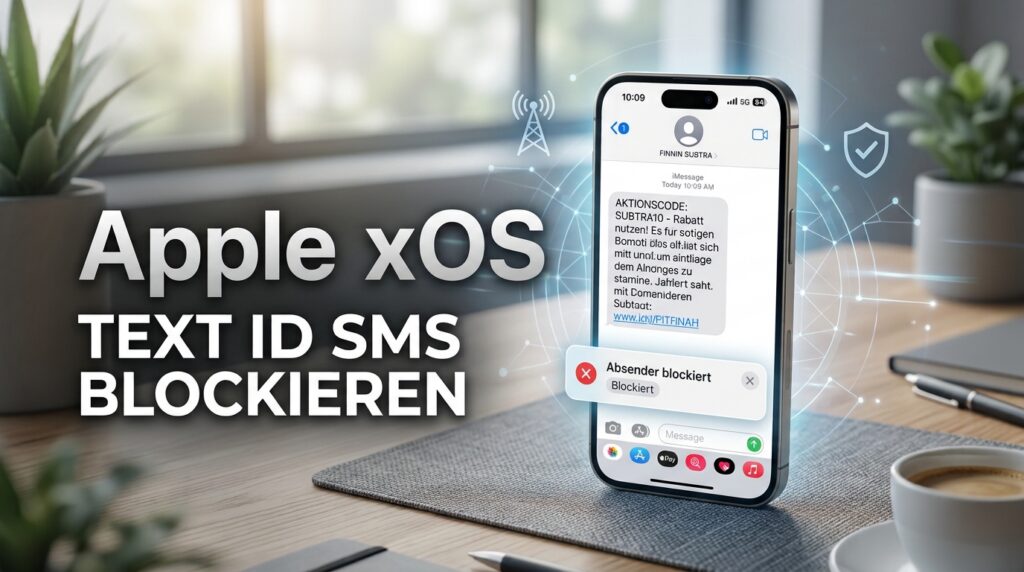
Text messages with ads are annoying! Block Apple “Text ID” SMS. Here’s how to get rid of them on iOS, iPadOS, and macOS.
We’ve all been there: an unwanted promotional SMS arrives, but instead of a normal phone number, the sender field simply displays a name like FINNIN SUBTRA. When you try to block this sender using the usual iOS feature (“Block this Caller”), it seems to work at first—only for the block to mysteriously disappear the next time you check your settings or restart the app.
Here is why standard blocking methods fail in this scenario and how a simple trick allows you to permanently block these annoying messages on your iPhone.
Video: Block Apple “Text-ID” SMS
Language: 🇩🇪|🇬🇧
☝️ Use YouTube subtitles for all languages.
The Problem: Why Standard Blocks Fail with Text IDs
SMS messages that display words instead of numbers in the sender field use what are known as Alphanumeric Sender IDs. These are commonly used by companies or bulk SMS gateways to send verification codes, delivery notifications, or marketing messages.
The issue with iOS:
- No Real Phone Number: The SMS data packet contains no phone number (e.g.,
+49170...), but purely ASCII text. - iOS Looks for Numbers: The iPhone operating system strictly requires a valid phone number or email address for its internal blocklist.
- Automatic Removal: When you tap “Block”, iOS attempts to save the plain text as contact data. Because the system cannot process this format properly, it silently discards the invalid entry in the background.
The Solution: Forcing the Text ID as a Phone Number
Since direct blocking through the message thread fails, we need to trick the system. The solution is to make the system blocklist believe the text string is a valid phone number.
Step-by-Step Instructions:
- Create a New Contact: Open the Contacts app on your iPhone and tap the plus sign (+) in the top right corner to create a new contact.
- The Crucial Trick: Enter the exact wording of the sender (e.g.,
FINNIN SUBTRA) into the phone number field—not just in the name field. - Save the Contact: Save the entry.
- Block via Settings:
- Open Settings on your iPhone.
- Go to Messages $\rightarrow$ Blocked Contacts.
- Tap Add New… and select the contact you just created.
Why Does This Trick Work?
By entering the exact sequence of letters directly into the phone number field of a contact card, the iOS blocklist accepts the string as a valid identifier.
When a new SMS arrives from that sender, the system matches the incoming sender ID against the stored string. Because the entry is now properly anchored in the system blocklist, your iPhone will automatically discard the message in the background without triggering a notification or deleting the entry.
Conclusion
Even though Apple makes it unnecessarily difficult for users to handle alphanumeric senders, entering the text string directly as a phone number in a contact card provides a quick and permanent solution to stop the spam for good.

Support / Donation Link for the Channel
If my posts have been helpful or supported you in any way, I’d truly appreciate your support 🙏
#iOS #iPhone #Apple #BlockSpam #TechTips