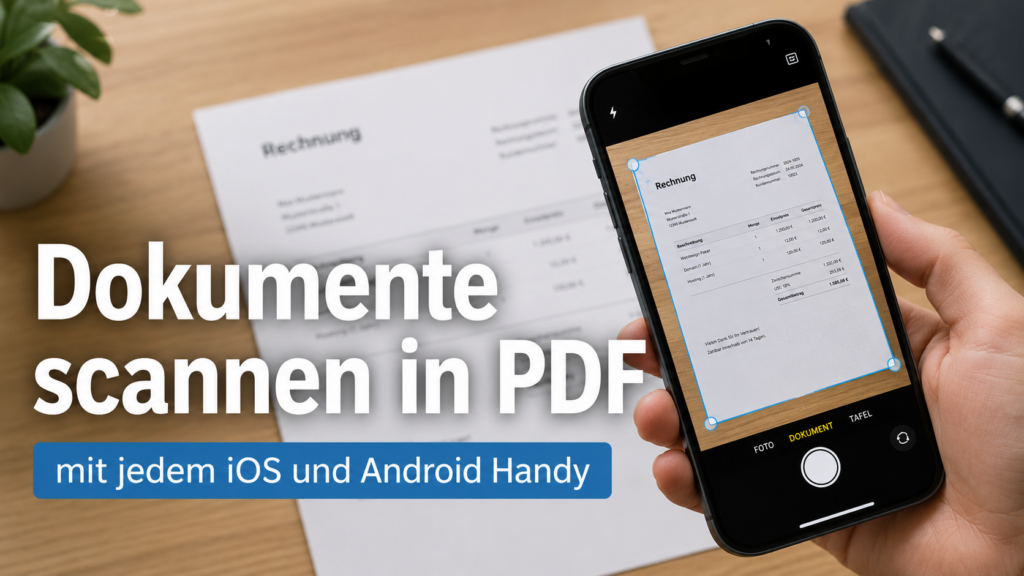
Everyone knows it: scan documents to PDF for filing or sending as an email. Here’s how to do it with any phone!
This post is exclusively about scanning paper documents with your phone to create PDF files. Also covered: sending via email or saving a scanned document to the file system or a DMS (Document Management System).
The goal of this post is scanning a single or multi-page document using the phone’s own camera system, and if that isn’t supported by the camera system, using an alternative. You can also do all of this with your tablet – there’s no difference, except that the screen is more pleasant because the display can show much more. Also, the scanned files are available on all your devices if you save them to the cloud (Google Drive or iCloud).
The procedure for iPhone and iPad has changed since this article was published. If you’re using an iPhone or iPad, please refer to this article, which describes the new procedure:
Video: Scan documents to PDF using any smartphone
Language: 🇩🇪|🇬🇧
☝️ Use YouTube subtitles for all languages.
Android phones and tablets
With Android phones, there are still many devices without the appropriate camera function. It’s important that the function is enabled in the camera settings (Documents, Scan QR code).
If your phone doesn’t support document scanning, simply skip ahead to the “Google Drive” section.
If your phone supports scanning, skip ahead to “iPhone / Apple” – the scanning process using the phone/tablet’s own camera is the same as with iPhone and iPad.
Google Drive – the alternative
If you really own an iPhone that doesn’t support the internal camera scan, or you’re using an Android device where it isn’t integrated, then use “Google Drive”. If it isn’t installed yet, you can download it for free from your app store.
There are also alternatives, like Dropbox for example, which offer the same range of functions, also for free.
Further alternatives are also available with DMS systems, which provide corresponding scan functions within the DMS app.
Follow the video to see the scanning process with “Google Drive”.
iPhone / Apple
Except for older models, the camera scan on Apple iPhone and iPad is enabled by default. The scanning process is very simple, and I show it in detail in the video. Watch the video to internalize the scanning and saving process.
Otherwise, there’s not really much to mention about Apple – it just always works. That’s why there are always so few Apple videos 😂
Note for Android users!
There is a lot of aggressive adware and software that, acting as QR code scanners, PDF readers, and all-document readers, tries to infiltrate your Android device. Uninstall all three types of software to clean your phone!
The first time you open a PDF file, you’ll be asked “Open with?” – choose “Google Drive” or “Google Lens” and always select “Use”. Then you’ll have peace until you install packages from this kind of software again.
You scan QR codes using “Google Lens”. In Google’s search bar, tap on the camera and scan your QR code.
… and that’s that!

Support / Donation Link for the Channel
If my posts have been helpful or supported you in any way, I’d truly appreciate your support 🙏
#ScanDocuments #PDFonYourPhone #GoogleDrive #ScanningTip #Paperless



Pingback: 19. July 2026 | Michael Klissner